
WordPress Maintenance
WordPress Website Maintenance: How to Keep Your Website Secure and Up to Date
WordPress website maintenance is the regular work of updating WordPress core, plugins and themes, scanning for malware, securing admin logins, checking backups and testing key site functions. Most Singapore business websites need it monthly or quarterly. At SG Web Builder it costs S$80/hour, and a typical session takes 1–2 hours.
- WordPress Maintenance
- Website Security
- Website Management
01
Why WordPress Website Maintenance Matters
Regular website maintenance helps prevent small issues from becoming bigger problems.
A typical WordPress website may contain WordPress core, multiple plugins, a theme, custom code, user accounts, forms and third-party integrations. All of these components need to work together properly.

Regular WordPress website maintenance helps you:
- Keep WordPress, plugins and themes updated
- Detect security vulnerabilities and malware
- Protect administrator accounts
- Maintain regular website backups
- Reduce spam and unwanted activity
- Check that important website functions are working
- Identify plugin or theme conflicts
- Keep your hosting environment secure
From WordPress itself
WordPress’s official Hardening WordPress guide recommends always running the latest WordPress version and keeping plugins up to date.
02
What WordPress Website Maintenance Includes
A good WordPress maintenance checklist should cover more than simply updating plugins.
Here are the key areas that should be checked regularly.
2.1WordPress, Plugin and Theme Updates
Keeping WordPress, plugins and themes updated is one of the most important maintenance tasks.
Updates can include:
- Security fixes
- Bug fixes
- Compatibility improvements
- Performance improvements
- New features
However, you should not simply update everything without checking.
A plugin update can sometimes conflict with another plugin, your WordPress theme or custom code. Before major updates, having a recent backup is also important so the website can be restored if something goes wrong.
- WordPress CoreCheck the version
- PluginsReview available updates
- ThemesReview available updates
- Compatibility CheckPlugins, theme, custom code
- BackupA recent restore point
- UpdateApply, then re-check
As part of WordPress maintenance, we recommend checking:
- WordPress core version
- Plugin updates
- Theme updates
- Outdated or abandoned plugins
- Update errors
- Plugin and theme compatibility
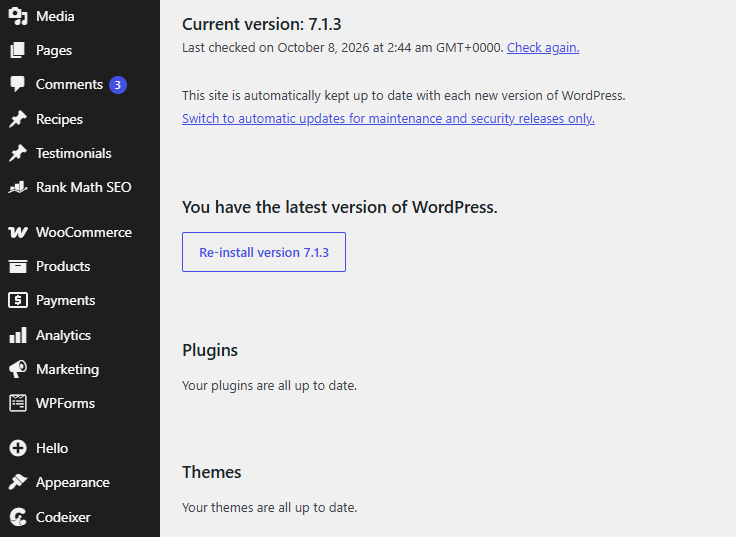
Dashboard → Updates: check the WordPress core version, plugins and themes in one place.
Housekeeping
Unused plugins and themes should also be removed rather than left installed.
2.2Security Scanning and Wordfence Configuration
Website security is one of the most important parts of WordPress security maintenance.

A WordPress security check can look for:
- Malware
- Suspicious files
- Modified files
- Vulnerable plugins
- Vulnerable themes
- Suspicious administrator accounts
- Unusual login activity
WordPress Plugin Security Scan
A regular security scan can help identify potential problems before they become more serious.
For websites that require additional protection, Wordfence is one of the commonly used WordPress security solutions.
Wordfence provides features including:
- Firewall protection
- Malware scanning
- Login security
- Brute-force protection
- Two-Factor Authentication (2FA)
- Security alerts
- IP blocking
- Vulnerability detection
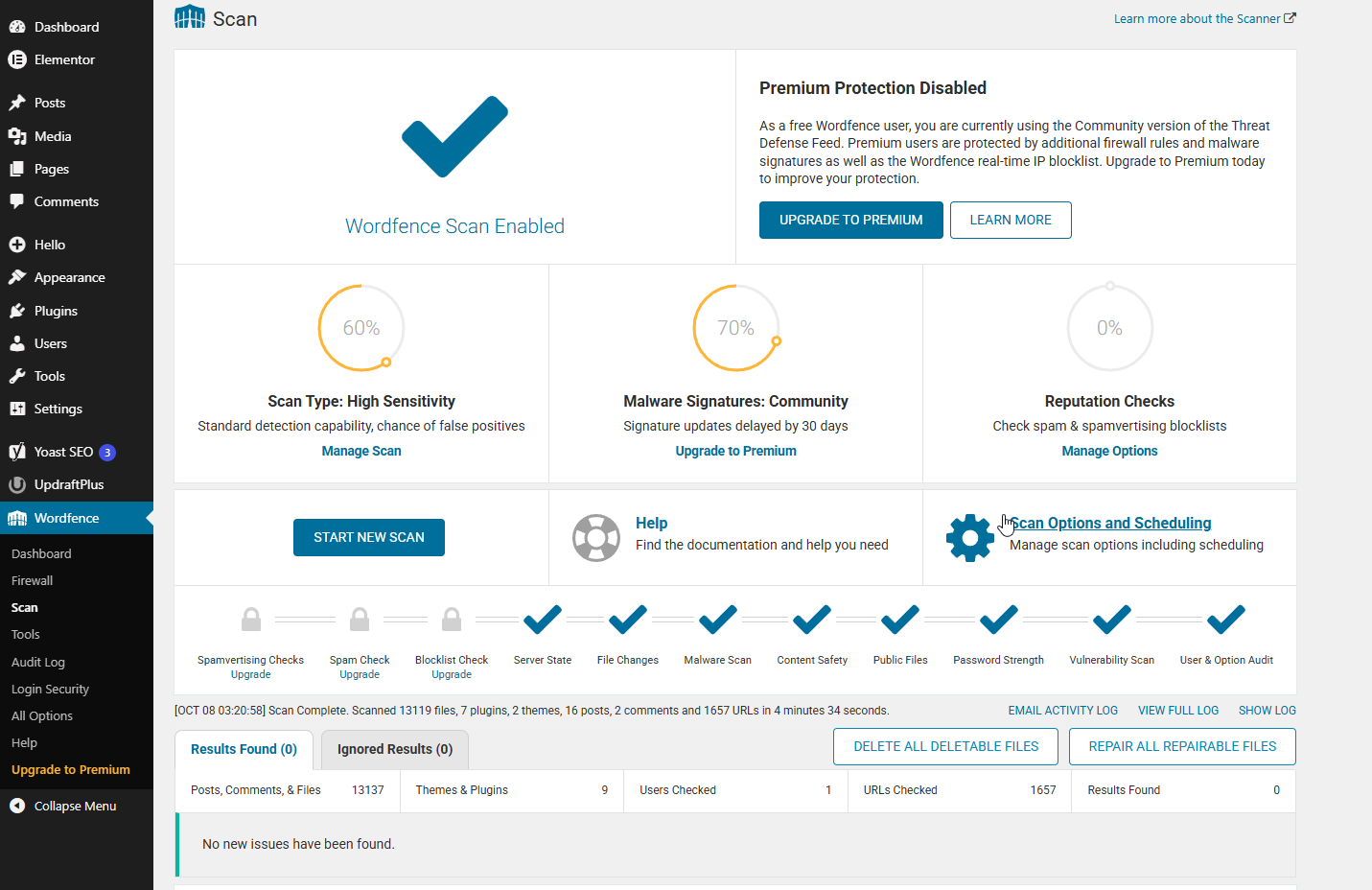
Wordfence → Scan: the scan stages and results of a completed scan.
Worth knowing
Simply installing Wordfence is not always enough. The available security settings should be configured according to the website’s requirements.
Advanced Wordfence Security Settings
For websites that require stronger WordPress security, advanced Wordfence features can be configured as part of the maintenance process.
Depending on the website, this may include reviewing:
- Web Application Firewall settings
- Advanced malware scanning
- Login security
- Brute-force protection
- 2FA
- Security alerts
- IP blocking
- Vulnerability notifications
Wordfence also provides additional security and audit features depending on the version and configuration.
Set Up Wordfence Email Alerts
Security alerts help you react quickly when something changes on the website. In Wordfence, the email alert settings let you choose which events send a notification, so important issues are not missed.
Depending on the version and configuration, Wordfence can send email alerts for events such as:
- Wordfence being deactivated
- The Web Application Firewall being turned off
- Scan results above a chosen severity level
- An IP address being blocked
- Someone being locked out from login
- An administrator signing in
- A large increase in attacks
- The “lost password” form used for a valid user
You can also set a maximum number of email alerts per hour, so the inbox is not flooded. Review these options during each maintenance visit and keep alerts that match how the website is managed.
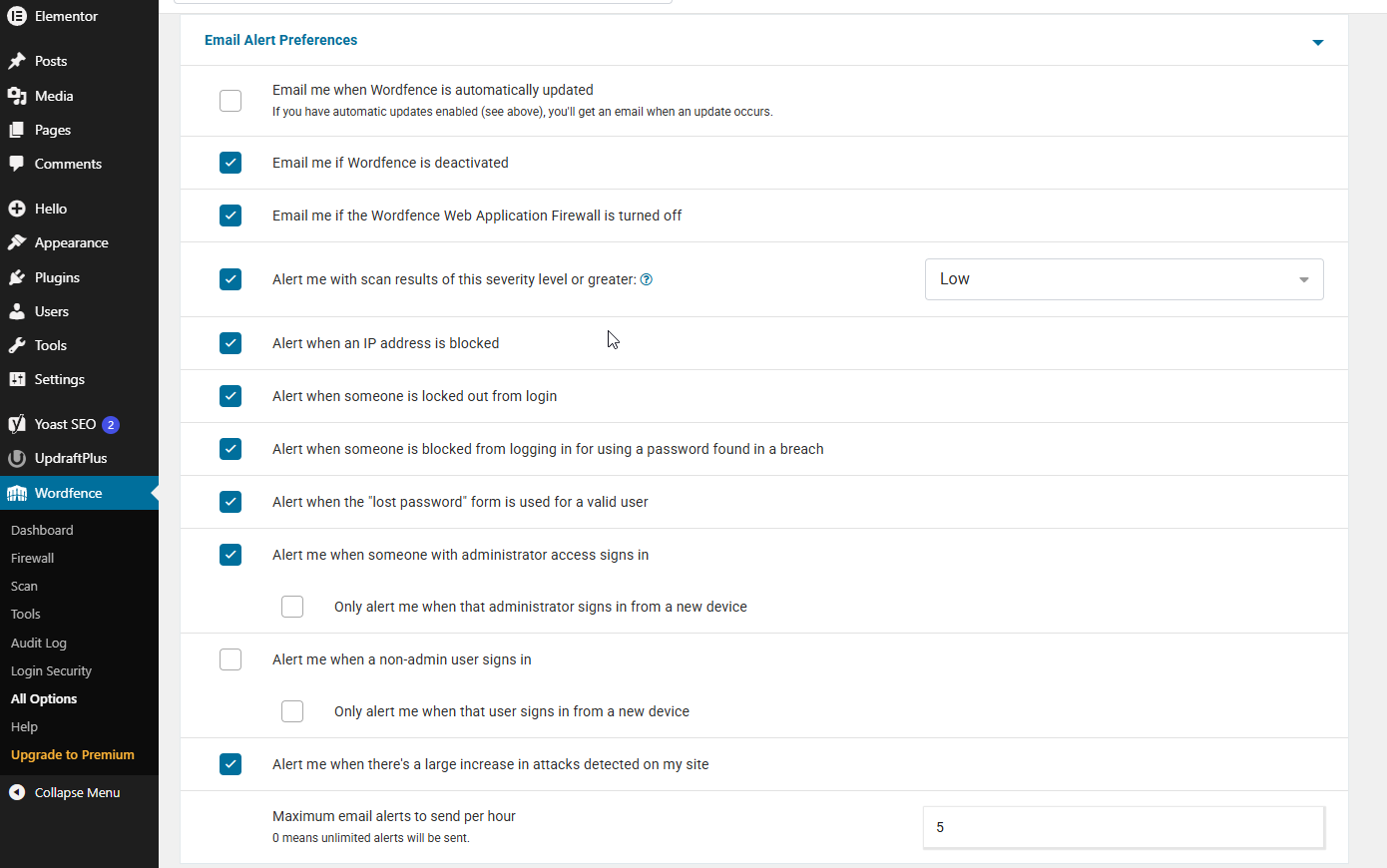
Wordfence → All Options → Email Alert Preferences: choose which security alerts are sent by email.
The goal is not to enable every security setting blindly. Wordfence should be configured carefully so that security is improved without unnecessarily affecting normal website functionality.
2.3Administrator Accounts and Login Protection
WordPress administrator accounts are an important part of website security.
A regular maintenance check should review all WordPress users and their permissions.
We recommend:
- Removing unused user accounts
- Checking administrator accounts
- Using strong passwords
- Enabling Two-Factor Authentication (2FA)
- Reviewing user roles and permissions
- Avoiding unnecessary administrator access
Do Not Use “Admin” as Your Administrator Username
Avoid using “admin” as the administrator username.
adminCommon usernameyour-own-accountOne per administratorIt is a common username and can make automated login attacks easier to target.
Each administrator should have their own appropriate account rather than sharing one administrator login.
Enable Two-Factor Authentication
Two-Factor Authentication (2FA) adds another layer of protection to the WordPress login process.
Even if a password is compromised, an attacker may still be unable to access the account without the second authentication factor.
Wordfence supports TOTP-based 2FA and backup codes, among other login-security features.
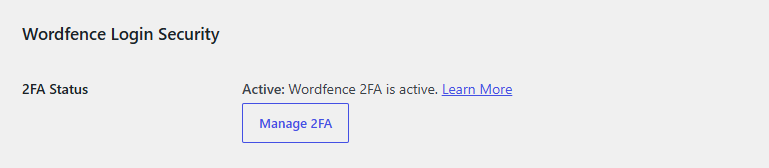
Wordfence → Login Security: 2FA enabled, with settings to manage it.
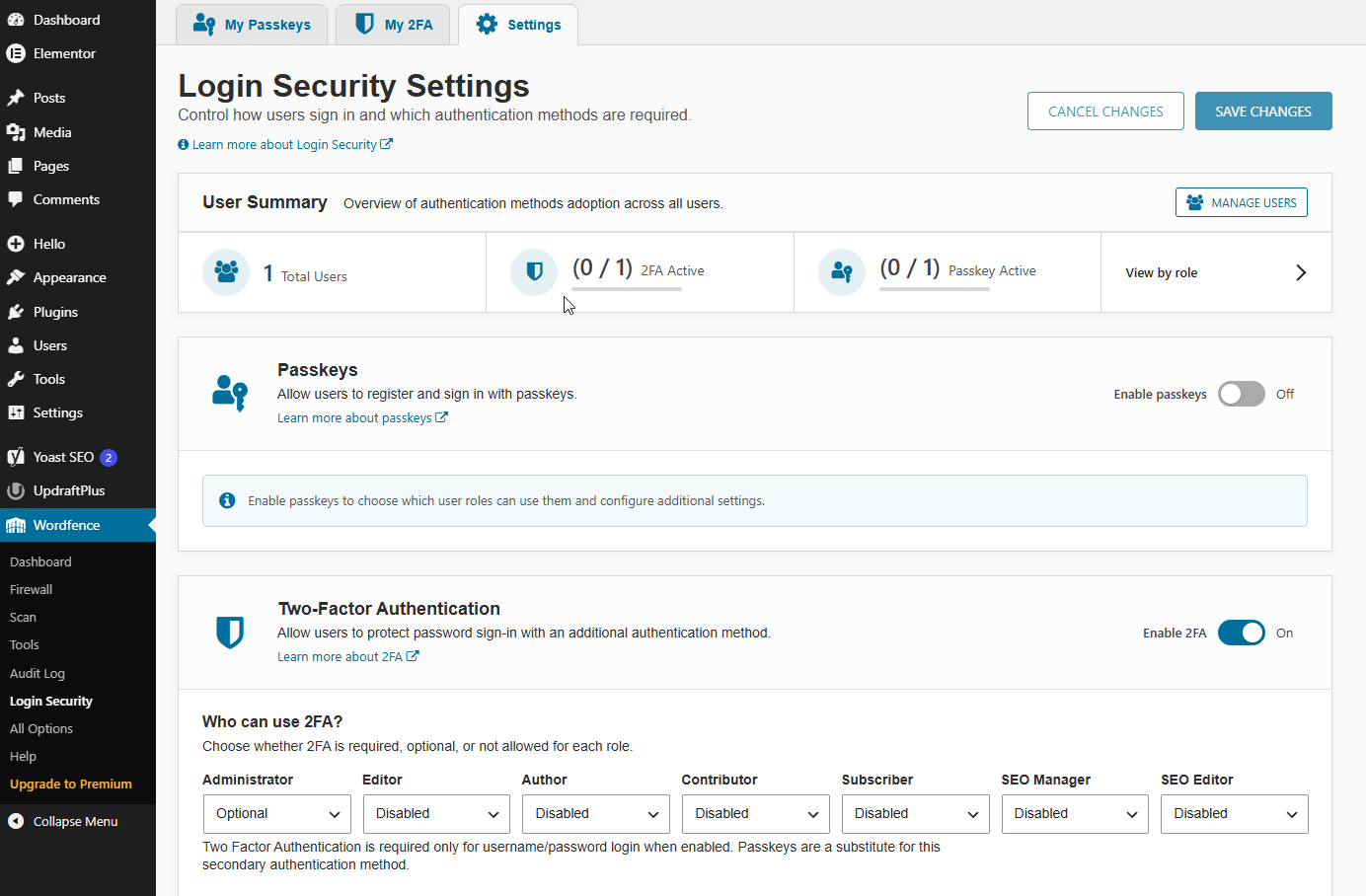
Wordfence → Login Security → Settings: 2FA can be set per user role, and the user summary shows how many accounts use 2FA.
Protect the WordPress Login Page
The default WordPress login URL can also be protected using appropriate security measures.
Changing or protecting the default login URL can help reduce automated login attempts, although it should be treated as an additional security measure rather than a replacement for strong passwords, 2FA and firewall protection.

Changing the default login URL and setting a redirection URL for visitors who are not logged in.
2.4Hosting Security and Backups
WordPress Hosting Security
Hosting security is just as important as WordPress security.
A secure WordPress website depends not only on the website itself but also on the hosting environment.
- WebsiteWhat your visitors seeLAYER 01
- WordPressCore, plugins, themeLAYER 02
- HostingThe environment it runs inLAYER 03
- Server SecurityMalware detection, firewall, SSLLAYER 04
- BackupRestore if something goes wrongLAYER 05
When choosing WordPress hosting, look for providers that offer security and backup features such as:
- Malware detection
- Malware protection
- Automatic backups
- SSL certificates
- Firewall protection
- Security monitoring
- Website restoration
Hosting providers such as CLDY, Hostinger and SiteGround offer various security and backup features depending on their hosting plans.
The exact features can vary between hosting providers and packages, so always check what is included in your specific plan.
Tip
Choosing hosting with built-in malware detection, protection and backups can make WordPress website maintenance much easier.
Regular WordPress Backups
A backup is one of the most important parts of website maintenance.
If your website is hacked, a plugin update causes an error or important files are accidentally deleted, a recent backup can help you restore the website.

A WordPress backup should normally include:
- WordPress files
- Database
- Media uploads
- Important configuration data
Backups should be performed regularly, and ideally before major updates.
The WordPress Backups handbook suggests weekly backups for smaller sites and daily backups for very active sites.
When choosing hosting, we recommend looking for plans that include:
- Automatic backups
- Multiple backup points
- Easy restore
- Backup retention
- Reliable storage
Important business websites
For important business websites, having only one backup location is not ideal. Maintaining additional backup copies can provide extra protection if the hosting account itself is affected.
2.5Spam Management and Website Function Testing
Spam is another common issue with WordPress websites.
During regular maintenance, it is useful to check:
- Spam comments
- Contact form spam
- Unwanted submissions
- Suspicious user registrations
- Other unnecessary website activity
If your business website does not use comments, you may also consider turning off the WordPress comment section.
This can reduce unnecessary spam and remove a feature that the website does not actually need.
WordPress’s Comments documentation explains how to manage spam and turn off comments if your site does not need them.
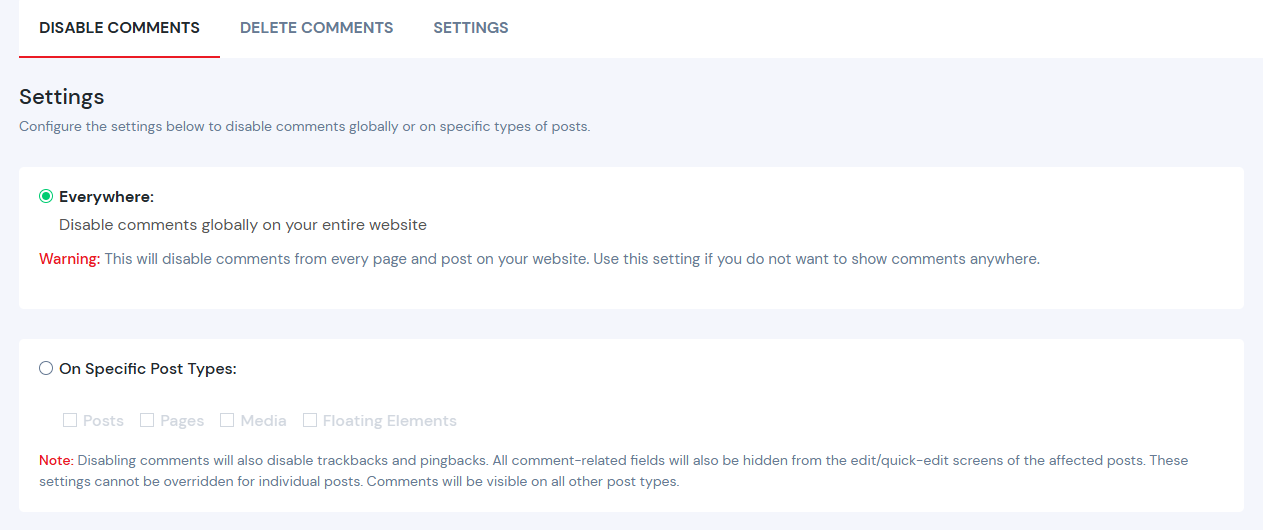
Settings to disable comments on the whole website, or only on specific post types.
Check Important Website Functions
Maintenance should also include basic front-end checks such as:
- Contact forms
- Important links
- Buttons
- Navigation
- Mobile display
- SSL/HTTPS
- Key website pages
- Important integrations
For WooCommerce websites
Additional checks may include:
- Shopping cart
- Checkout
- Payment functions
- Order emails
2.6Malware Removal and Google Blacklist Recovery
A WordPress site can still be hacked through an outdated plugin or weak password. Watch for these signs:
- Visitors redirected to spam websites
- Pages, links or files you did not create
- A “This site may be hacked” warning in Google
Cleaning a hacked site involves removing the malware, fixing the entry point and asking Google to review the site in Search Console.
Already infected? See our malware removal and Google blacklist recovery service, with a one-time clean-up from S$500 and warranty.
2.7Update Your PHP Version
PHP is the language WordPress runs on. Older versions are slower and may stop receiving security fixes. WordPress recommends PHP 8.3 or newer.
Check your version in Tools → Site Health → Info → Server. Before upgrading in your hosting panel, take a backup and confirm that your plugins and theme support the new version.
2.8Speed and Contact Form Delivery
A secure site can still lose enquiries if it is slow or its forms fail.
- Speed: use caching, compress images and check Core Web Vitals in Google PageSpeed Insights.
- Forms: send a test enquiry and confirm that the email arrives. An SMTP plugin helps form emails avoid the spam folder.
Faster pages also support search visibility. See our SEO service.
03
How Often Should You Maintain a WordPress Website?
There is no single maintenance schedule that works for every website.
The ideal frequency depends on how frequently your website changes and how important it is to your business.
MORE ACTIVE
Monthly WordPress Maintenance
Monthly maintenance is suitable for websites that:
- Receive regular updates
- Use multiple plugins
- Have e-commerce functionality
- Receive customer enquiries
- Are important to daily business operations
EVERY ~3 MONTHS
Quarterly WordPress Maintenance
A good option for smaller business websites that do not change frequently. The website can be reviewed approximately every three months to check security, updates, backups and functionality.
SIMPLE WEBSITES
Biannual WordPress Maintenance
Biannual maintenance may work for simple websites with limited activity. However, important security updates and backups should still be handled throughout the year.
VERY SIMPLE WEBSITES
Yearly WordPress Maintenance
Yearly maintenance can be suitable for very simple websites that rarely change. However, leaving a WordPress website completely unchecked for an entire year is not recommended. Security updates and backups should still be managed when required.
04
How Much Does WordPress Maintenance Cost in Singapore?
The cost of WordPress website maintenance varies depending on the website, number of plugins, complexity and amount of work required.
WordPress maintenance services can commonly range from approximately S$50–S$150 per hour depending on the provider and type of work.
Approximate range, depending on the provider and type of work.
Our WordPress maintenance rate.
Depending on the website and the work required.
SG Web Builder WordPress Maintenance
Our rate is S$80 per hour, and each maintenance session takes around 1 – 2 hours. You can choose the schedule that best fits your website:
A good fit for more active websites.
A simple routine for most business websites.
- BiannualEvery 6 months
- YearlyOnce a year
You do not necessarily need a large long-term maintenance package.
A simple business website may only need an occasional maintenance check, while a more active website may benefit from monthly maintenance.
See what SG Web Builder’s WordPress maintenance covers and how it works.
05
WordPress Website Maintenance Checklist
Tick items off as you review your own website. Your progress stays in this browser tab and is not saved or sent anywhere.
01Updates
- WordPress core
- Plugins
- Themes
- Plugin compatibility
- Remove unused plugins/themes
- Check PHP version
02Security
- Malware scan
- WordPress security scan
- Wordfence
- Firewall
- Security alerts
- Vulnerability checks
- Check Google Search Console for security warnings
03Login Security
- Review administrator accounts
- Remove unused users
- Avoid “admin” username
- Enable 2FA
- Review user permissions
- Protect the WordPress login page
04Backup
- Check recent backups
- Backup before major updates
- Confirm automatic backups
- Check restoration options
05Website
- Test contact forms
- Check important links
- Check mobile display
- Check SSL/HTTPS
- Test important functions
- Confirm form emails are received
- Check page speed
06Spam
- Check spam messages
- Review comments
- Disable comments if not required
- Remove unwanted submissions
07Hosting
- Check malware protection
- Check backup features
- Check SSL
- Review hosting security features
06
Frequently Asked Questions
What is WordPress website maintenance?
WordPress website maintenance is the regular process of updating, securing, backing up and checking a WordPress website to keep it running properly.
How often should I maintain my WordPress website?
For most business websites, monthly or quarterly maintenance is a practical choice. Smaller websites with little activity may choose biannual or yearly maintenance.
What is included in WordPress maintenance?
Typical maintenance can include WordPress, plugin and theme updates, malware scanning, Wordfence security checks, user security, backups, spam management, hosting security and website functionality checks.
Is WordPress maintenance only about updating plugins?
No. Plugin updates are only one part of website maintenance. Security, backups, user accounts, hosting, spam and website functionality should also be reviewed.
Do I need Wordfence for my WordPress website?
Not every website necessarily needs Wordfence, but a security solution can provide useful malware scanning, firewall and login-security features. The right security setup depends on the website and its requirements.
Should I use hosting with malware protection?
Yes. Hosting with malware detection, protection, backups and other security features can provide an additional layer of protection for your WordPress website.
Should I disable WordPress comments?
If your website does not use comments, disabling them can reduce spam and unnecessary maintenance. If comments are important to your website, they can remain enabled with appropriate spam protection.
How much does WordPress maintenance cost?
The cost depends on the website and the work required. At SG Web Builder, the maintenance rate is S$80 per hour, with simple maintenance sessions usually taking approximately 1 – 2 hours.
Can I choose monthly or quarterly WordPress maintenance?
Yes. SG Web Builder offers monthly, quarterly, biannual and yearly maintenance, as well as one-time WordPress maintenance.
How much does WordPress malware removal cost in Singapore?
At SG Web Builder, a one-time malware clean-up starts from S$500 with warranty, including a Google review request to remove the blacklist warning.
Do I have to pay a deposit for WordPress maintenance?
No. SG Web Builder requires no deposit; you review the completed maintenance and pay only after the work is done.
Should I update my PHP version?
Yes, if your host offers a newer supported version. Take a backup and check plugin compatibility first, because an old plugin can break on a newer PHP version.
Can you maintain Shopify, Joomla or Wix websites?
Yes. Besides WordPress, SG Web Builder maintains Shopify, Joomla, Wix, Squarespace and custom HTML websites.
Still have questions? Read about our WordPress maintenance service or email us at louis@8clicks.com.sg.
Need help keeping your WordPress website secure and up to date?
Talk to our team about a maintenance schedule that suits your website.