
WordPress Maintenance · Our Process
What Does WordPress Maintenance Actually Include? Our 6-Step Process Explained
The six steps we follow in every session, how long it takes, what it costs and the report you receive afterwards, shown with screenshots and a report from a real maintenance session.
- 6 steps per session
- Usually 1 – 2 hours
- Maintenance report included
- 1Back up the websiteFiles + databaseRestore point
- 2Review installed pluginsVersions, updates, statusReviewed
- 3Update plugins & themeThen check the siteUpdated
- 4Malware scanFiles, code, signaturesScanned
- 5Administrator accountsWho has full accessReviewed
- 6Maintenance reportWhat was done and foundSent
Illustration of the workflow, not a live status.
“When you pay someone to maintain your WordPress website, what exactly are they doing?”
Most business owners know that plugins need updating. Far fewer know what actually happens in a maintenance session, or what they should have in hand when it is finished. Professional maintenance is a lot more than clicking the Update button.
So instead of another generic checklist, here is one real session from start to finish. It was carried out on an e-commerce website we maintain, and the report, scan and update screenshots below come from its October 2026 maintenance report, with client details removed. The Plugins and Users screenshots are from one of our own websites, so that no client’s admin area is shown.
One real session · October 2026From the client report
Below is the WordPress maintenance process behind those numbers, followed by the report you receive, how long a session takes and what it costs. If you want to know why maintenance matters in the first place, read our guide to why regular WordPress maintenance matters.
01
Our 6-Step WordPress Maintenance Process
Every routine session follows the same order: protect the website first, make changes second, record everything last.
Back Up the Website Before Making Changes
Before anything changes, we back up the website as it is: the WordPress files (themes, plugins, media and WordPress itself), the database that holds your pages, products, orders, settings and users, and any relevant configuration, depending on the backup method.
Every later step changes something. If a plugin update introduces a compatibility problem and a page stops loading, a backup taken a few minutes earlier lets us put the website back the way it was. Without one, recovery is slower and recent changes can be hard to recover. A backup only counts if it is complete and can actually be restored, and the method depends on the hosting environment and the tools available.
02. Monthly Backup
Monthly Backup holds the latest link where you can retrieve the latest backup that we have exclusively and manually do for your site.
| No | Type | Link |
|---|---|---|
| 1 | All-in-One WP Migration | Local Storage |
Backed up one from Siteground
Review Installed Plugins and Identify Available Updates
Next, we go through every installed plugin: its current version, whether an update is available, what the update changes where a changelog exists, and whether the plugin is still actively maintained. Plugins that look unused are noted for further review.
Updating blindly is how websites break. WordPress plugin updates can conflict with another plugin, the theme or custom functionality, so the goal is to understand what is about to change before it changes.
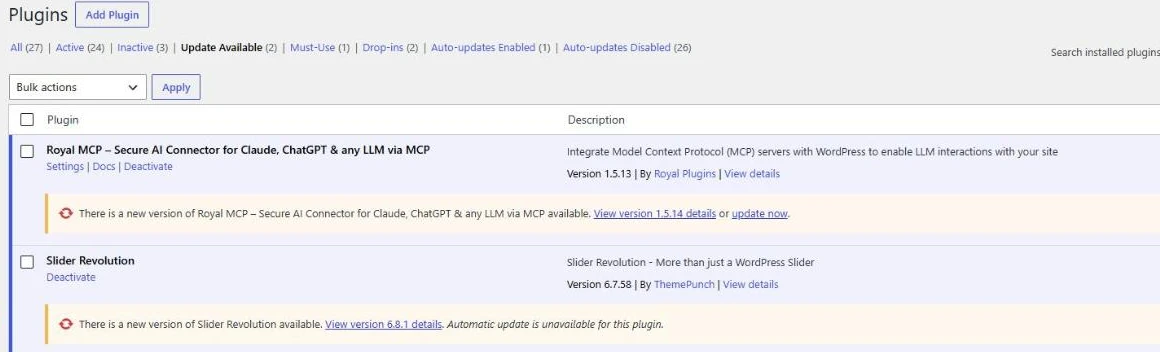
Plugins → Update Available, shown on one of our own websites. Each plugin lists its installed version and the new version on offer. One can be updated from the dashboard; the other notes that automatic update is unavailable, so it has to be updated manually. Checking “View version details” before updating is part of the review.
Update WordPress Plugins and Themes
With a backup in place and the review done, we apply the appropriate plugin updates, update the active theme where required and confirm that each update completed without errors.
Then we check the website. WordPress shows a success message when an update finishes, but that only means the files were replaced. It does not tell you whether the contact form still sends or the checkout still takes payment, so after WordPress theme updates and plugin updates we check the pages and functions they could affect. Major updates, or complex websites such as online shops, may need more testing.
Skipping this step has a cost:
- Known vulnerabilities stay openSecurity fixes that already exist never reach your website.
- Fixed bugs stay on your siteProblems the developer has solved keep affecting you.
- Compatibility problems build upOlder plugins drift out of step with newer WordPress versions.
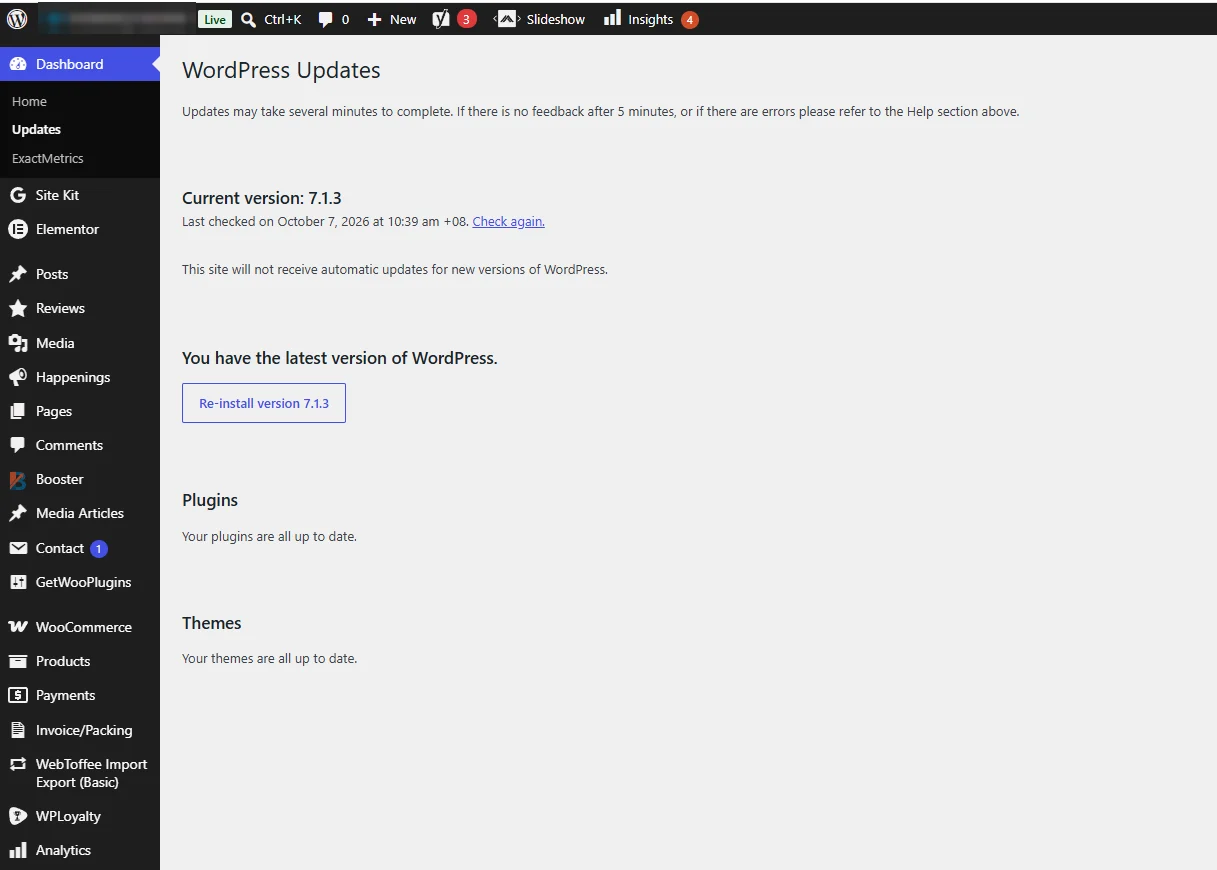
Dashboard → Updates at the end of the session. WordPress 7.1.3 is current, and the plugins and themes are all up to date. Site name hidden.
Your approval comes first: our reports state that we need your written approval before we update anything manually on your website.
Scan the Website for Malware and Suspicious Files
The WordPress malware scan looks for known malicious signatures, suspicious or modified files, unexpected code changes and any other warnings from the scanning tool. Malware is usually built not to be seen, so the signs tend to be indirect: unexpected redirects, injected code, unknown files or an alert from a monitoring tool. A website can look perfectly normal to its owner while something is wrong.
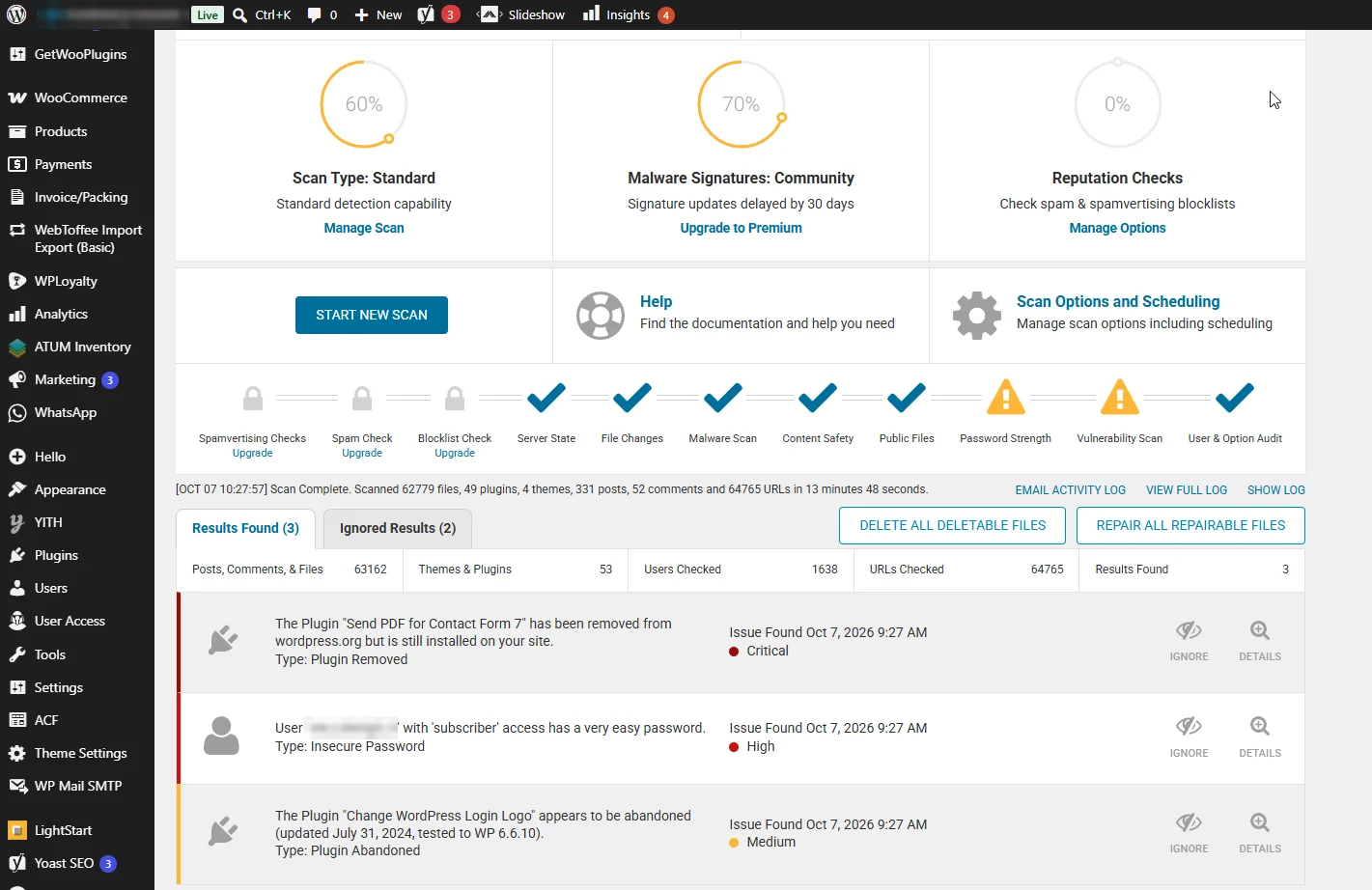
The real Wordfence scan from this session. 1 the malware check passed; 2 three other results still need a decision. Site name and username hidden.
Malware scan
0 malware found
Recorded in the report as “None”.
- Files scanned
- 62,779
- URLs checked
- 64,765
- Plugins · themes
- 49 · 4
- Scan time
- 13m 48s
Still worth a look: 3 results
- Critical
A plugin was removed from wordpress.org but is still installed.
- High
A subscriber account has a very easy password.
- Medium
A plugin appears abandoned (last updated July 2024).
None of the three results is malware, which is exactly why scan results are read rather than counted. Some warnings are false positives, others need investigation before anyone acts. If an infection is ever discovered, cleanup is a separate scope of work.
For comparison: what a clean scan looks like
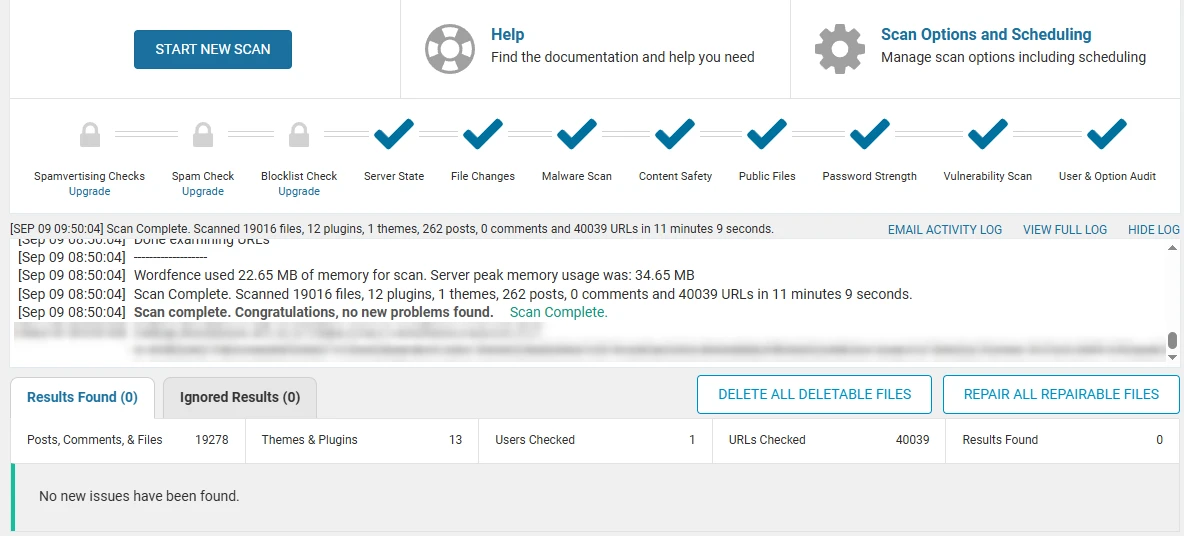
Every check passed and Wordfence reported “no new problems found”. A clean result like this is what each session works towards, and the report records the result either way. Site details hidden.
Check for Unknown or Suspicious Administrator Accounts
A WordPress administrator can install plugins, change any setting, edit any content and manage other users. Over the years, developers, agencies and staff are given administrator logins, and the accounts often stay after the work ends. For WordPress administrator security, we check every administrator account against who should have access, and look for unfamiliar accounts, accounts that no longer need administrator rights and unexpected user changes.
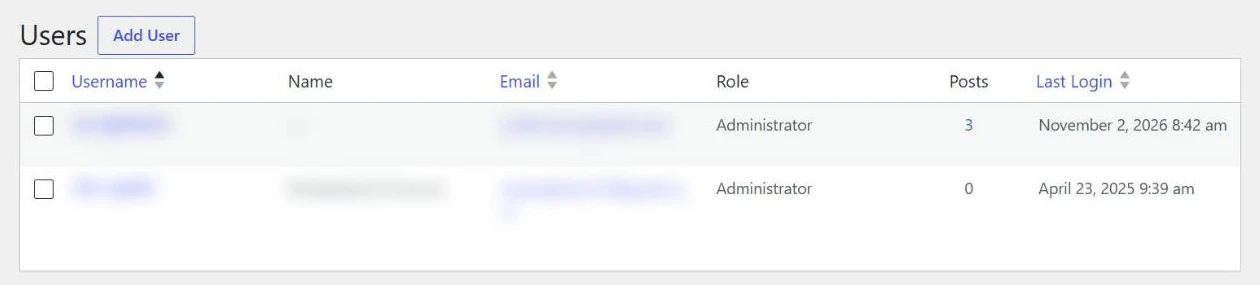
Users → Administrator, shown on one of our own websites with names and emails blurred. A column such as Last Login makes it easy to spot an administrator account that has not been used for a long time. That is a question to ask, not an automatic deletion.
How we treat each administrator account
Removing access that is no longer authorised leaves fewer ways for someone to make unauthorised changes later.
Prepare a WordPress Maintenance Report
Finally, we document the session, so you are never left guessing what was done. The report is what you keep after the work is finished, so it gets its own section below.
02
What You Receive: The WordPress Maintenance Report
After each session you receive a written WordPress maintenance report. This is the real quarterly report from the session above.
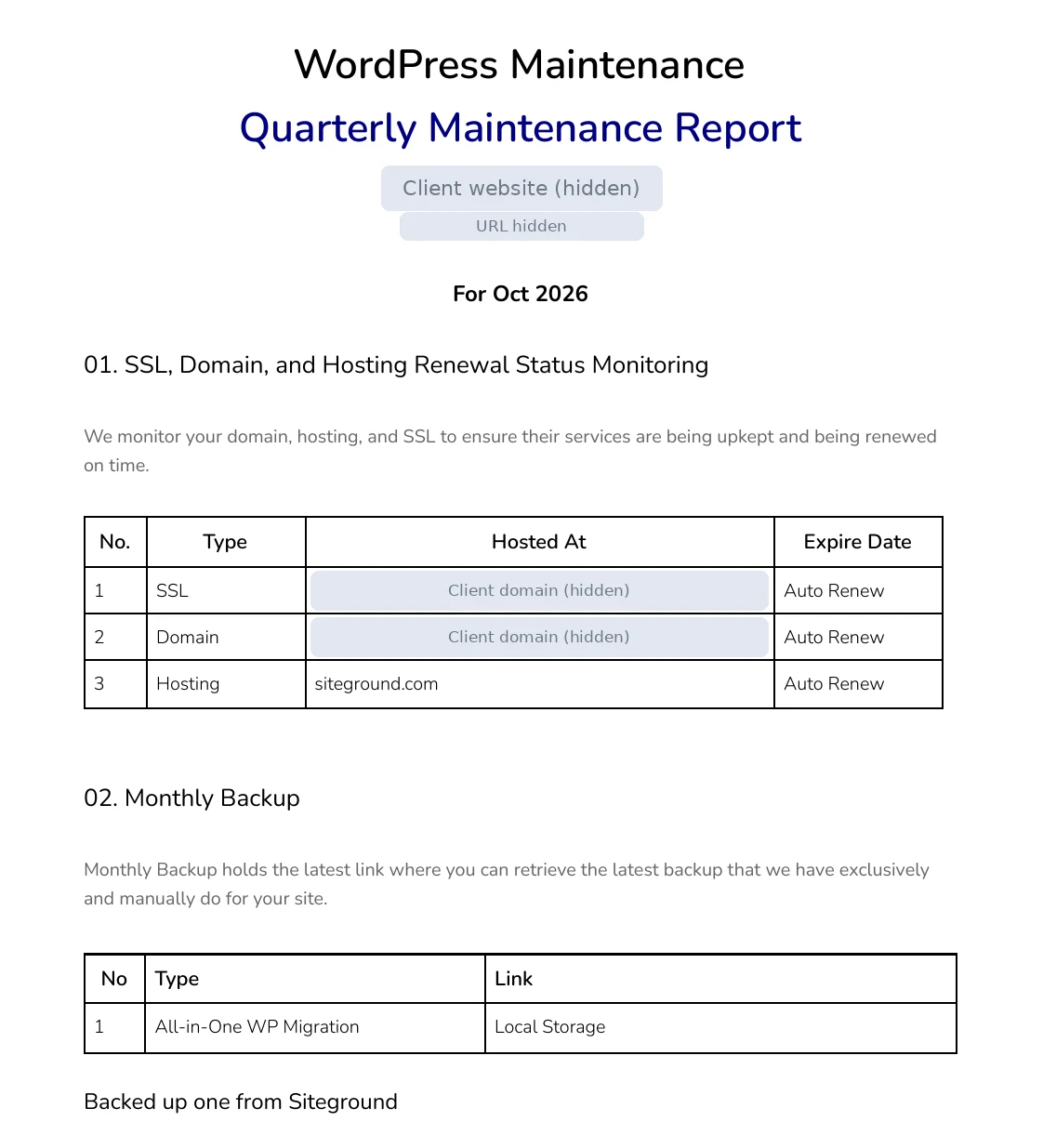
What this report shows at a glance
- Website
- Named in the header (hidden here)
- Report type
- Quarterly Maintenance Report
- Period
- October 2026
- Contents
- 6 sections plus screenshots of the Updates screen and the Wordfence scan
- Signed off by
- Website Maintenance Team
Explore the sample report
Select any of the six sections to see what it records and the entry from the real report.
SSL, Domain, and Hosting Renewal Status Monitoring
Shows whether the SSL certificate, domain and hosting are set to renew, so a missed renewal does not take the website offline.
| No. | Type | Hosted At | Expire Date |
|---|---|---|---|
| 1 | SSL | Client domain | Auto Renew |
| 2 | Domain | Client domain | Auto Renew |
| 3 | Hosting | siteground.com | Auto Renew |
From the sample report. Client domain hidden.
Monthly Backup
Records how the backup was made and where it is kept, so you know a restore point exists.
| No | Type | Link |
|---|---|---|
| 1 | All-in-One WP Migration | Local Storage |
Note in the report: “Backed up one from Siteground”.
DNS Records Updated for Client
For DNS hosted with us, any record changed during the period is listed, such as the email records that help messages from your domain get delivered.
| No. | Record Type | Host | Value | Remarks |
|---|---|---|---|---|
| 1 | TXT | Client domain | SPF record (value hidden) | None |
From the sample report. Domain and record value hidden.
Updates to WordPress Core and Plugins
Lists each plugin with its current version and the action taken, so you can see exactly what changed.
| No. | Name | Current Version | Action |
|---|---|---|---|
| 16 | Elementor Pro | Version 4.3.1 | Updated |
| 20 | Forminator | Version 1.57.3 | Updated |
| 26 | Payment Plugins for Stripe WooCommerce | Version 4.0.18 | Updated |
| 42 | WP Mail SMTP | Version 4.10.0 | Updated |
| 4 of 49 rows shown. | |||
The report also includes the WordPress Updates screenshot shown in Step 3.
Bug Fixes and Browser Compatibility Updates
Bugs or browser compatibility issues that we found, or that you raised, are recorded with their status, including matters still under investigation.
| No. | Bug Fixes Done | Date Raised | Status |
|---|---|---|---|
| 1 | None | None | None |
Nothing was raised in this period of the sample report.
Malware, Virus, and Removal
Records which tool scanned the website, any malware or virus detected and the action taken.
| No. | Scan Via | Virus or Malware name | Status |
|---|---|---|---|
| 1 | Wordfence Dashboard | None | None |
The report also includes the Wordfence scan screenshot shown in Step 4.
In practice, the report answers “when was the website last updated?” in seconds, shows you what each session found and makes the next session easy to compare. It records what was checked and what was found at the time. It is not proof that a website is completely secure.
03
How Long Does WordPress Maintenance Take, and What Does It Cost?
A typical SG Web Builder maintenance session takes about 1 – 2 hours in total. That is the whole session, not a fixed time per task.
A simple business website usually needs less time than a large one with integrations, custom features or an online checkout. The table shows what can stretch each part; scan time alone varies with size, and on the website above, with over 62,000 files, the scan took just under 14 minutes.
| Maintenance task | What happens | What can make it longer |
|---|---|---|
| 1Backup | Create a restore point before updates | A large site or a slow backup method |
| 2Plugin review | Identify available updates and potential concerns | Many plugins, or plugins no longer maintained |
| 3Plugin and theme updates | Apply suitable updates and review results | Major updates, custom features, an online shop |
| 4Malware scan | Scan for suspicious files and security warnings | Many files, or findings that need a closer look |
| 5Administrator review | Check existing administrator accounts | Unrecognised accounts to investigate |
| 6Reporting | Document completed work and outstanding issues | Issues that need explaining or follow-up |
What it costs
You pay for the time the work takes. The actual cost depends on the time required and the agreed scope of work.
Not part of a routine session
These take longer than 1 – 2 hours and are assessed and agreed separately before any work starts:
- Malware removal
- Emergency recovery
- Complex troubleshooting
- Major website repairs or PHP migrations
- Extensive compatibility work
Choose your schedule
- One-time
- Monthly
- Quarterly
- Biannual
- Yearly
See the details of our WordPress maintenance service in Singapore.
04
Frequently Asked Questions
What exactly is included in WordPress maintenance?
A routine session at SG Web Builder covers six steps: back up the website, review the installed plugins, update the plugins and theme and check the site, scan for malware, review administrator accounts, and send you a maintenance report.
What does SG Web Builder do during a WordPress maintenance session?
We work in a fixed order: protect the website first, make changes second and record everything last. Updates are applied only after a backup and a review, and the website is checked afterwards rather than assumed to work.
How long does WordPress maintenance usually take?
About 1 to 2 hours for a typical session. Websites with many plugins, custom features or an online shop can take longer, as can sessions where an error or a suspicious finding needs investigating.
Why should a website be backed up before updating plugins?
An update can conflict with another plugin, the theme or custom code. A backup taken just before the update means the website can be restored to how it was, instead of being repaired under pressure.
Do you update both WordPress plugins and themes?
Yes. We apply suitable plugin updates and update the active theme where required, then check the parts of the website the updates could affect.
Does WordPress maintenance include malware scanning?
Yes. Every routine session includes a malware scan, and the result is recorded in your report. Removing malware, if an infection is found, is separate work.
Do you check for unknown WordPress administrator accounts?
Yes. Every administrator account is checked against who should have access. Unfamiliar accounts are investigated rather than assumed to be malicious.
Will I receive a report after maintenance is completed?
Yes. The report records the website and period covered, the SSL, domain and hosting renewal status, the backup, any DNS changes, the WordPress core and plugin updates, bug fixes and the malware scan result, with supporting screenshots.
How much does WordPress maintenance cost in Singapore?
At SG Web Builder it is SGD $80 per hour. A typical 1 to 2 hour session costs about SGD $80 to $160. The final cost depends on the time required and the agreed scope of work.
What happens if malware is found during routine maintenance?
We explain what the scan found and check it first, because not every warning is an infection. If an infection is confirmed, investigation and cleanup are assessed and agreed separately from the routine session.
How often should I schedule WordPress maintenance?
It depends on how often your website changes and how important it is to your business. Active websites and online shops often suit monthly or quarterly sessions, while simple websites may choose biannual or yearly. One-time maintenance is also available.
Can you maintain an existing WordPress website built by another developer?
Yes. For an existing website, the first session includes getting to know its plugins, theme, custom features and who has administrator access.
For the wider picture, read our WordPress website maintenance best practices, or ask our team a question.
Keep your WordPress website updated, scanned and on record
Talk to our team about WordPress maintenance with backups, updates, security checks and a report after every session.